
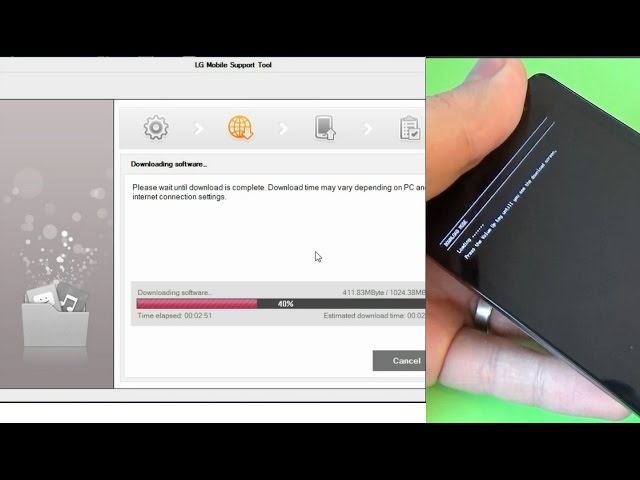
If you use an older LG smartphone and need to update its software or fix common system issues, the LG Mobile Support Tool is still one of the most reliable utilities available. Although LG has exited the smartphone market, many users continue to depend on this tool for firmware upgrades, device recovery, and troubleshooting. This guide will walk you through the installation process in a clean, simple, and practical way so you can get the tool running without confusion.
What Is the LG Mobile Support Tool?
The LG Mobile Support Tool is an official Windows utility designed to help users update or repair the software on LG phones. It automatically detects your device, checks for available firmware, and downloads the correct files directly from LG’s servers. For users dealing with boot loops, app crashes, slow performance, or outdated software, this tool often becomes the fastest method to restore the device.
System Requirements Before Installing
Before installing, make sure your computer meets the minimum requirements. The tool is not heavy, but a stable setup ensures the update process doesn’t break in the middle.
- Windows 7, 8, 10, or 11
- At least 4GB RAM
- A stable internet connection
- An original USB data cable
- Latest LG USB Drivers (tool may prompt you to install if missing)
Having these basics ready prevents random errors during the firmware download.
Step 1: Download the LG Mobile Support Tool
The first step is to download the official installer from a trusted source. Many websites host the file, but avoid random mirrors because corrupted installers can cause firmware issues later. Once downloaded, locate the .exe file in your Downloads folder.
Step 2: Start the Installation Process
Double-click the installer and allow it to run. Windows may show a security prompt — choose Yes to continue. The setup window will appear with the standard installation steps. You’ll be asked to select a destination folder, agree to the terms, and confirm basic settings. Follow the prompts normally. The installation barely takes a minute because the tool is lightweight.
Step 3: Install LG USB Drivers
After installing the tool, the next crucial part is the USB drivers. The software cannot recognize your phone without them. In most cases, the tool will automatically detect missing drivers and offer to install them. If not, you can manually install LG USB Drivers from the settings inside the program. Once the drivers are installed, restart your PC to avoid connection conflicts.
Step 4: Connect Your LG Smartphone
Use a good-quality USB cable and connect your phone to the computer. Make sure the phone has enough battery, ideally at least 50%. Once connected, the tool will automatically read your device information. If the phone is not recognized, switch USB modes or reconnect the cable. This step is important because the tool needs accurate device details before downloading the firmware.
Step 5: Start the Update or Recovery Process
After detecting the phone, the tool will show available software updates. You can click Start Update to begin the process. If your device is stuck in a boot loop or is not starting properly, use the Recovery or Repair option. The tool will download the firmware package directly from LG and flash it automatically. Do not disconnect the phone during this time — interruptions can cause system corruption.
Step 6: Wait for the Installation to Complete
The firmware download depends on your internet speed, and the flashing process can take several minutes. The phone may restart multiple times, which is normal. Once the update is complete, the device will boot into the latest stable version of LG’s software. After the first start, it might take a little longer because the system is optimizing apps and settings.
Common Issues and Quick Fixes
Phone Not Detected
Try reinstalling USB drivers or switching USB ports.
Download Stuck
Check your internet connection or temporarily disable antivirus software that may block the tool.
Update Failed
Restart your PC, reconnect the device, and run the tool as an administrator.
Final Thoughts
The LG Mobile Support Tool remains a practical solution for users who still rely on LG smartphones. The installation process is simple, and the tool handles most of the technical work automatically. Whether you’re upgrading outdated firmware or fixing a device that refuses to boot, this utility offers a straightforward, official, and safe method to restore your phone.