
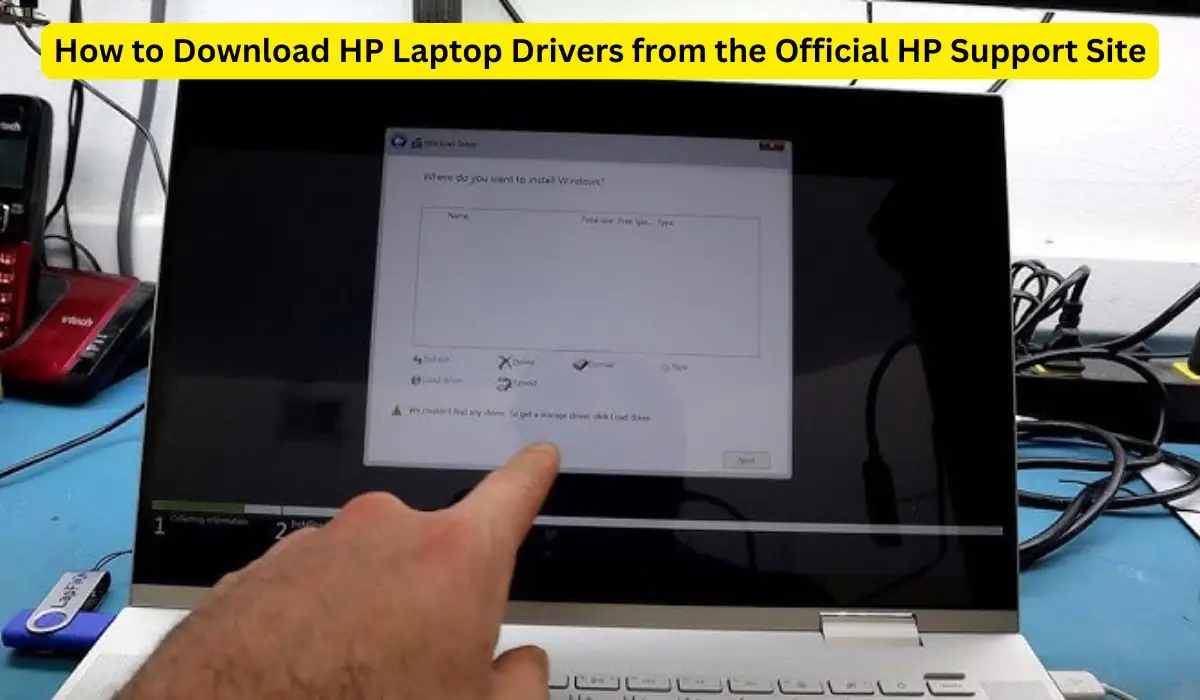
Keeping your HP laptop drivers updated isn’t optional—it’s necessary if you want stable performance, smooth graphics, fast networking, proper audio, and zero random glitches. Most people mess this up by downloading drivers from shady third-party websites, and that’s exactly how laptops end up with broken drivers, malware, or compatibility issues.
If you want reliable performance, there’s only one correct source: HP’s official support website.
This guide breaks down the entire process—step-by-step—so you can download and install the right drivers without confusion or mistakes.
Why You Should Only Download Drivers from the Official HP Support Site
Look at the logic:
- Third-party driver websites bundle junk software or malware.
- Wrong drivers can break your display, touchpad, WiFi, or audio.
- HP updates drivers regularly for Windows 10 and Windows 11 compatibility.
- BIOS and chipset drivers absolutely must come from HP’s database only.
If your goal is stability, HP’s official page is the only choice that makes sense.
Before You Begin: Identify Your Exact HP Laptop Model
This part matters. HP doesn’t serve generic drivers—model numbers differ, and each model has its own driver set. If you pick the wrong model, you’ll install the wrong drivers.
How to find your HP laptop’s exact model number
Use any one of these methods:
1. Check the bottom of your laptop
You’ll find something like:
- HP Pavilion 15-ec0xxx
- HP 15s-eqxxx
- HP EliteBook 840 G3
- HP Victus 16-e0xxx
2. Check inside HP Support Assistant
- Press Windows Key
- Type HP Support Assistant
- Open it
- Your model number appears on the home screen.
3. Using Windows System Information
- Press Win + R
- Type:
msinfo32 - Press Enter
- Look for System Model
Once you have the exact model number, continue.
Step-by-Step: How to Download HP Laptop Drivers from the Official HP Support Page
The process is simple, but only if you follow it properly.
Step 1: Go to the Official HP Driver Download Website
Open this official URL:
support.hp.com
(Never use any other website.)
From the homepage:
- Click “Software & Drivers”
- Select “Laptop”
This takes you to the driver search page.
Step 2: Enter Your HP Laptop Model Number
You will see a search bar.
Type your model number exactly—for example:
- “HP Pavilion 15-ec2000”
- “HP 250 G7”
- “HP Victus 16-e0350AX”
Then click Submit.
HP will load the exact support page for your laptop.
Step 3: Choose Your Operating System
HP will automatically detect your OS, but don’t trust auto-detection blindly.
You’ll see a dropdown for:
- Windows 11 64-bit
- Windows 10 64-bit
Make sure you pick the OS installed on your laptop.
Wrong OS = Wrong drivers.
Step 4: You’ll See a List of Driver Categories
HP groups drivers into sections:
- Driver-Audio (Realtek, Bang & Olufsen, Dolby)
- Driver-Graphics (Intel, AMD, NVIDIA)
- Driver-Network (WiFi + Bluetooth)
- Driver-Storage (Intel RST, Storage Controller)
- Driver-Chipset
- BIOS
- Keyboard/Touchpad Drivers
- Software-Solutions
Each section matters. Skip the wrong ones and your laptop will still misbehave.
Step 5: Download the Drivers You Need
Here’s the logic for which drivers you MUST install:
✔ 1. Chipset Driver
This should be installed first.
It controls:
- CPU
- Motherboard sensors
- Power management
Without this, the rest of the drivers may malfunction.
✔ 2. Graphics Driver
Depends on your laptop:
- Intel → Install Intel Graphics
- AMD → Install AMD Radeon
- NVIDIA → Install GeForce Driver
Graphics drivers impact:
- Display clarity
- Gaming
- Video rendering
- Overall performance
✔ 3. Audio Driver
HP usually uses:
- Realtek Audio
- Bang & Olufsen configurations
If you’re facing “No Audio Output Device Installed”, this fixes it.
✔ 4. WiFi + Bluetooth Driver
This solves:
- Weak WiFi signal
- Unstable Bluetooth
- Missing WiFi adapter
✔ 5. Touchpad / Keyboard Driver
If gestures or special keys don’t work, this is the reason.
✔ 6. Storage Controller / Intel RST
Important for:
- SSD/HDD speed
- Boot time
- File transfers
✔ 7. BIOS Update (Only if necessary)
BIOS updates improve:
- Stability
- CPU management
- Fan control
- RAM compatibility
But don’t update BIOS unless you’re facing real issues.
Step 6: Install Each Driver Properly
Driver installation is simple but do it one at a time.
How to install a driver:
- Double-click the downloaded
.exefile - Click Next
- Let Windows complete the installation
- Restart your laptop after major drivers (chipset, graphics, audio, BIOS)
Don’t install multiple drivers at once.
Don’t skip restarts.
Optional But Recommended: Use HP Support Assistant
HP Support Assistant automatically:
- Detects missing drivers
- Installs updates
- Fixes outdated versions
How to use it:
- Search HP Support Assistant in Start
- Open it
- Click Updates
- Let it scan
- Install recommended updates
Not perfect—but useful.
Common Driver Problems and How to Fix Them
1. “The driver is not compatible with this version of Windows”
This means:
- You downloaded the wrong OS version
or - Your laptop doesn’t support Windows 11
Fix:
- Switch OS to Windows 10 in the dropdown
- Re-download correct drivers
2. WiFi Not Showing After Driver Installation
Try this:
- Open Device Manager
- Expand Network adapters
- If WiFi adapter is missing → You installed wrong drivers
- Reinstall the official WiFi/Bluetooth package
3. Audio Not Working After Update
Fix:
- Uninstall audio driver
- Restart
- Install HP’s Realtek Audio driver (not Windows generic)
4. Touchpad Not Responding
Fix:
- Install Synaptics or ELAN Touchpad Driver
- Restart
- Enable touchpad from Settings
How to Know You Installed the Right Driver
Simple checks:
- No yellow triangle in Device Manager
- No missing devices
- Smooth WiFi, audio, video
- No lag in UI
- Fans running normally
- Battery lasting longer
If these things align, you’re good.
Important Tips for Better Performance
- Never install drivers from random websites
- Don’t use auto-driver-install software (DriverPack, Driver Booster = risky)
- Always update chipset first
- Update graphics only from HP or the official GPU brand
- BIOS update only if needed
- Keep Windows updated
Small mistakes here create big performance problems later.
Also Read: LG Mobile Support Tool – Installation Tutorial (Official & Complete Guide)
Conclusion
Downloading official HP laptop drivers is straightforward if you follow the correct process:
Find your exact model → choose the right OS → download from HP’s official page → install drivers in the logical order.
Do it right, and your HP laptop will run smoother, faster, and more stable—without the usual nonsense of errors, crashes, or missing hardware.