
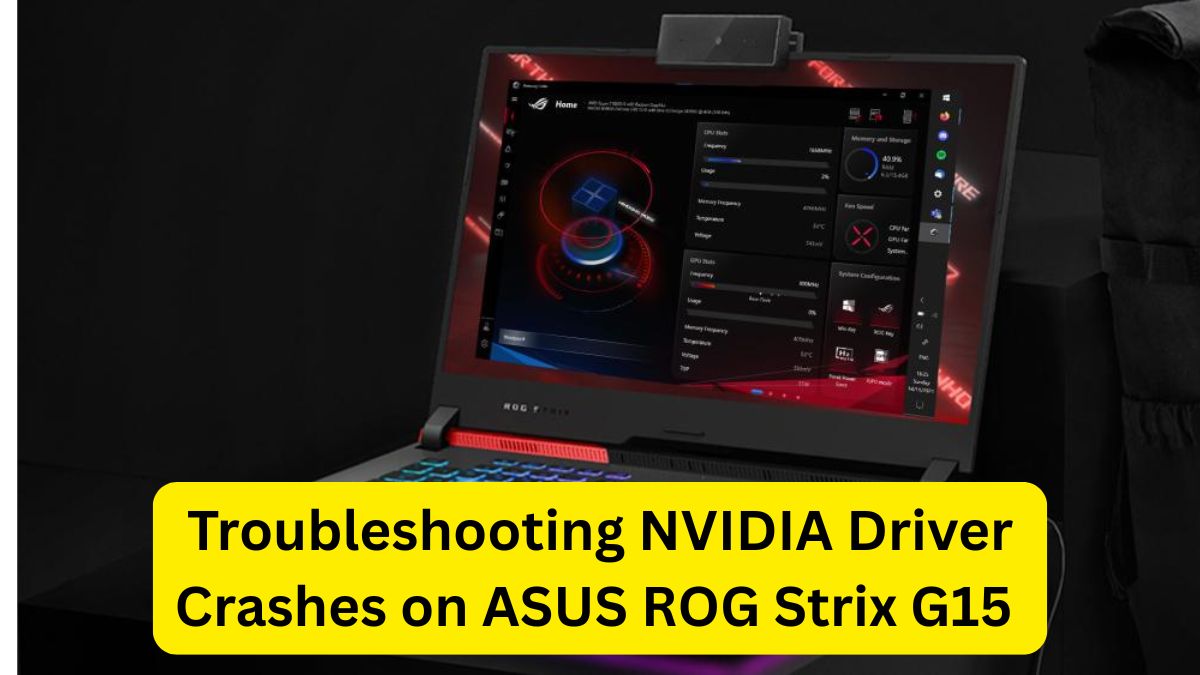
If you own a ROG Strix G15 with an RTX 3060 or RTX 3070, you bought it for performance — not random black screens, game crashes, or the classic “Display driver stopped responding” error.
Let’s be clear: in most cases, this is not a dead GPU. It’s usually a messy driver stack, a bad update, Windows interference, or power/thermal mismanagement. The mistake most people make? They reinstall the driver normally and assume that’s a “clean install.” It isn’t.
This guide walks you through fixing it properly — step by step.
First: Confirm It’s Actually a Driver Crash
Typical NVIDIA driver crash symptoms on this laptop:
- Game suddenly closes to desktop
- Screen goes black for 2–3 seconds, then comes back
- Error mentioning
nvlddmkm.sys - “Display driver stopped responding and has recovered”
- Random freeze during gaming but fine on desktop
- Code 43 error in Device Manager
If this is happening mainly during gaming or GPU-heavy tasks, you’re likely dealing with a driver or power issue — not hardware failure.
Troubleshooting NVIDIA Driver Crashes on ASUS ROG Strix G15
Step 1: Do a Real Clean Driver Removal (Not the Fake One)
Uninstalling from Control Panel is useless. Leftover files remain and cause conflicts.
You need Display Driver Uninstaller (DDU).
How to do it properly:
- Download DDU.
- Download the NVIDIA driver you plan to install (don’t rely on auto-download).
- Disconnect internet.
- Boot into Safe Mode.
- Run DDU → Select NVIDIA → Click Clean and Restart.
- After reboot, install the driver manually.
When installing:
- Choose Custom Installation
- Check Perform a clean installation
- Install only Graphics Driver + PhysX (skip GeForce Experience for now)
Test stability before installing any extra software.
This alone fixes a large percentage of crashes.
Step 2: Stop Windows from Ruining It
Windows Update loves replacing your freshly installed driver with its own version — often older or incompatible.
Disable automatic driver updates:
Windows 11 Pro:
- Open Group Policy Editor
- Computer Configuration → Administrative Templates → Windows Components → Windows Update
- Enable: “Do not include drivers with Windows Updates”
Windows Home:
- Control Panel → System → Advanced System Settings
- Hardware → Device Installation Settings → Select “No”
If you don’t do this, Windows may overwrite your fix within days.
Step 3: Stop Chasing the Latest Driver
New doesn’t mean stable.
If crashes started right after updating, roll back.
Go to: Device Manager → Display Adapters → NVIDIA GPU → Properties → Driver → Roll Back Driver
If rollback isn’t available, install an older stable version from NVIDIA’s website.
For RTX 3060/3070 laptop GPUs, slightly older Game Ready drivers often run more stable than the newest release, especially on gaming laptops with custom power limits like the ROG Strix G15.
Stability > Latest features.
Step 4: Check Armoury Crate and Power Profiles
The ROG Strix G15 uses aggressive power profiles via Armoury Crate.
Switch to:
- Performance mode (not Turbo)
- Disable manual GPU overclock
- Remove any undervolt/overclock settings
If you’ve used MSI Afterburner or similar tools — reset everything to stock.
Laptop GPUs are tightly tuned. Even small tweaks can cause instability.
Step 5: Watch Temperatures (Be Honest About It)
If your GPU is hitting:
- 86–90°C constantly
- CPU above 95°C
Then thermal throttling can trigger driver resets.
Check temps while gaming using a monitoring tool. If temps are high:
- Clean vents
- Elevate rear of laptop
- Avoid gaming on bed or fabric
- Consider repasting only if experienced
If crashes happen only under heavy load, heat is a serious suspect.
Step 6: Check for Software Conflicts
Disable or uninstall temporarily:
- Overlays (Discord, Xbox Game Bar)
- MSI Afterburner
- Third-party antivirus
- Recording software
- RGB control utilities
Then do a clean boot:
- Press Windows + R → type
msconfig - Hide Microsoft services → Disable all
- Restart
If crashes stop, a background app was interfering.
Step 7: Update BIOS (If You’re Behind)
Visit ASUS support for your exact Strix G15 model variant.
If your BIOS is several versions behind, update it.
But:
- Do not interrupt the process
- Do not update BIOS casually if you’re already stable
BIOS updates can fix GPU compatibility issues — but only update if necessary.
Step 8: Rule Out Windows Corruption
Open PowerShell as Administrator and run:
- sfc /scannow
- DISM /Online /Cleanup-Image /RestoreHealth
If Windows system files are corrupted, GPU drivers can crash regardless of version.
Also Read: How to Download HP Laptop Drivers from the Official HP Support Site (Complete Guide)
When It Might Actually Be Hardware
Be realistic.
It could be hardware if:
- GPU disappears randomly from Device Manager
- Crashes happen even outside gaming
- System shuts down abruptly (not freeze — full power off)
- External monitor also loses signal
If that’s happening, test with:
- Fresh Windows install
- Or service center diagnostic
But this is less common than driver stack corruption.
What Actually Fixes It in Most Cases
If you want the highest success rate:
- DDU clean removal
- Install stable older NVIDIA driver
- Disable Windows driver updates
- Reset Armoury Crate profiles
- Stop overlays and monitoring tools
Most RTX 3060/3070 Strix G15 crashes are solved right there.
Also Read: LG Mobile Support Tool – Installation Tutorial (Official & Complete Guide)
Final Reality Check
Gaming laptops are tightly tuned machines. The RTX 3060/3070 inside the ROG Strix G15 isn’t a desktop GPU — it runs within power and thermal limits defined by ASUS firmware.
If you constantly update drivers, tweak voltages, enable every overlay, and stack monitoring tools — you’re creating instability. Keep it simple. Stable driver. Stock settings. Controlled thermals.